Amazon Q Business Connector Configuration: ACL Reference for Existing Deployments
Reference guide for existing Amazon Q Business deployments. Covers connector ACL sync, identity mapping, S3 metadata ACL patterns, and permission verification for...
Note: As of November 2026, Amazon Q Business is no longer open to new customers. AWS documentation directs prospective customers to alternative offerings. This article remains relevant for existing Q Business deployments.
The most important property of an internal knowledge search system is not how quickly it finds answers. It is whether it shows each user only the documents they are permitted to see. Amazon Q Business supports document-level access control lists (ACLs) that map each indexed document to the users and groups permitted to retrieve it. When a user queries Q Business, the results are filtered before being shown, using that user's identity.
This article covers connector setup for the most common internal sources, ACL synchronization, and identity mapping. The worked example uses a legal team knowledge base.
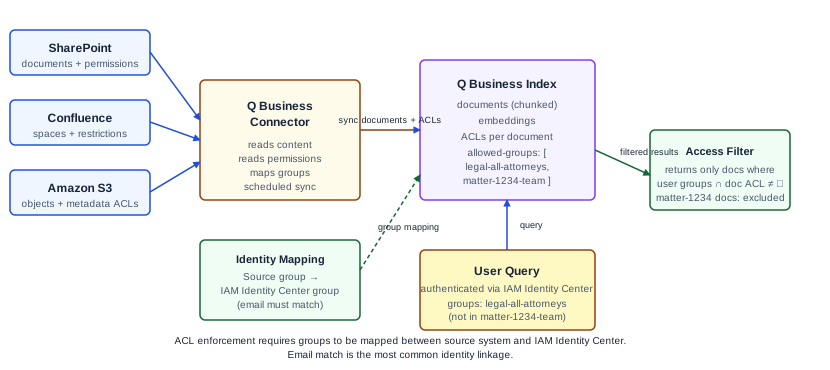
How Q Business handles access control
Q Business access control operates at two levels. The application level restricts who can access the Q Business application at all; this uses IAM Identity Center (or IAM Identity Center-integrated identity providers). The document level restricts which documents each user can retrieve within the application; this uses ACLs attached to each indexed document.
Document-level ACLs are populated by the connector when it syncs documents. For sources like SharePoint and Confluence that have native permission structures, the connector can read those permissions and translate them into Q Business ACL entries. For S3, which has no per-document user permission model at the object level, ACL enforcement requires a different approach (see below).
At query time, Q Business filters retrieved documents against the requesting user's identity. The user identity comes from the IAM Identity Center principal. For ACL enforcement to work, the group memberships in the data source (such as Active Directory security groups that govern SharePoint access) must be mappable to IAM Identity Center groups.
Connector types and ACL behavior
As of source-checked date, Q Business supports connectors for sources including Amazon S3, Microsoft SharePoint, Atlassian Confluence, Salesforce, and others. ACL behavior differs by connector.
| Connector | ACL crawl method | Identity mapping requirement | Key limitation |
|---|---|---|---|
| Microsoft SharePoint | Reads site, list, item permissions directly | SharePoint groups mapped to IAM Identity Center groups | Group name or email must match across systems |
| Atlassian Confluence | Reads space and page restrictions | Confluence groups mapped to IAM Identity Center groups | Space-level restrictions may override page-level |
| Amazon S3 | Requires metadata file per document | Metadata file must reference IAM Identity Center group names | Metadata must be maintained in sync with actual access policy |
| Salesforce | Reads Salesforce sharing rules | Salesforce profiles mapped to IAM Identity Center groups | Custom sharing models may require custom mapping |
Microsoft SharePoint: The SharePoint connector reads site, list, and item-level permissions from SharePoint's permission model. These translate directly into Q Business ACLs using the security group memberships from your Active Directory or Entra ID. If a document is accessible only to the "Legal-Internal" security group, the ACL entry for that document restricts retrieval to members of that group.
For ACL sync to work:
- Configure the connector with credentials that have read access to SharePoint permissions (not just document content)
- Map SharePoint groups to IAM Identity Center groups. Q Business needs this mapping to resolve user identity at query time
- Run an initial full sync, then schedule incremental syncs to pick up permission changes
Atlassian Confluence: Similar to SharePoint: the connector reads Confluence space and page restrictions. Map Confluence groups to IAM Identity Center groups.
Amazon S3: S3 objects do not have per-user ACLs in the IAM sense (bucket policies and object ACLs control IAM principal access, not individual end-user document access). For Q Business S3 connectors, document-level ACLs must be provided in a metadata file accompanying each document. The metadata file specifies which users or groups may retrieve that document. This requires a process to maintain the metadata files in sync with your actual access control policy.
Worked example: legal team knowledge base
A law firm wants to deploy Q Business for internal legal research. Documents in the knowledge base include:
- Contract templates: accessible to all attorneys
- Matter-specific documents: accessible only to the attorneys on that matter
- Privileged communications: accessible only to named attorneys and the matter partner
Identity setup:
The firm uses Microsoft 365 with Entra ID. IAM Identity Center is configured with Entra ID as the external identity provider. AD security groups are synced to IAM Identity Center:
legal-all-attorneys→ all attorneysmatter-1234-team→ the specific matter teammatter-1234-partners→ the matter partner only
Connector setup (SharePoint):
- In the Q Business console, create a connector for SharePoint Online
- Provide the SharePoint tenant URL and authentication credentials (use OAuth or service account as documented)
- Confirm ACL crawling is active. Per AWS documentation, Q Business crawls ACLs by default. Some connectors allow enabling or disabling ACL crawling during data source creation; once ACL crawling is enabled it cannot be turned off. Check the specific connector's configuration page for any explicit ACL toggle. Source: Connector concepts, checked 2026-11-05.
- Configure the group identity mapping: map SharePoint groups to IAM Identity Center groups by name or by using a prefix convention
- Run the initial sync and monitor the sync log for permission errors
Post-sync verification:
Log in to Q Business as an attorney who is not on matter 1234. Query for content that only appears in matter-1234 documents. Verify that no matter-1234 documents appear in the results.
Log in as an attorney who is on matter 1234. Query for the same content. Verify that the matter-1234 documents do appear.
Document both tests in your access control test evidence.
Failure case: permission change propagation:
If an attorney is removed from matter 1234 (they leave the matter), the SharePoint permission change must propagate to Q Business. This happens on the next scheduled sync. Until the sync runs, the removed attorney's cached session in Q Business may still return matter documents. To reduce this window:
- Run incremental syncs more frequently (hourly, if the connector and sync cost allow)
- For immediate revocation, manually trigger a resync of the affected documents
The sync propagation delay is a known characteristic of connector-based systems. Document this delay in your legal operations security policy so attorneys understand the access revocation window.
Identity mapping considerations
The critical linkage is between the user identity in Q Business (their IAM Identity Center principal) and the groups they belong to in the source system. If this mapping is missing or incorrect, one of two failures occurs:
- Users see no documents (the ACL check finds no matching group, blocks all results)
- Users see all documents (the ACL check is not configured and defaults to open)
To verify mapping is working: after connector sync, navigate to the Q Business console and inspect the indexed documents' ACL entries. Confirm that the ACL shows the expected group names from IAM Identity Center, not the raw source-system group identifiers.
If you are using email addresses as the identity linkage, verify that the user's email in IAM Identity Center matches their email in the source system. Mismatches (organization.com vs. mail.organization.com) silently break ACL matching.
Failure modes
ACL sync misconfigured or disabled. Q Business crawls ACLs by default, but some connectors allow disabling ACL crawling during initial data source creation. If a connector was created with ACLs disabled (a privileged operation requiring specific IAM permissions), all indexed documents from that source are treated as public and returned to all users. Verify during initial setup that ACL crawling is active for all sensitive data sources. Once ACL crawling is enabled, it cannot be turned off.
Group mapping gap. A SharePoint group that has no corresponding IAM Identity Center group is not enforced. Documents accessible to that SharePoint group become visible to anyone in Q Business who queries for them. Audit all source-system groups and ensure each has a mapped IAM Identity Center group.
Sync schedule too infrequent. Permission changes in the source system do not propagate until the next sync. For high-sensitivity documents, schedule syncs at least hourly.
S3 metadata not maintained. For S3 connectors, the metadata files that carry ACLs must be updated when permissions change. If the metadata maintenance process breaks, ACLs become stale.
What to do next
The next useful step is running the access control verification tests after connector setup and initial sync: check that unauthorized users cannot retrieve protected documents, and that authorized users can. Document the results. Schedule incremental syncs appropriate to your permission-change frequency.
For Ampity's Custom AI Workforce services, see the Custom AI Workforce service page.
Primary references
- Amazon Q Business connectors overview, source checked 2026-11-05
- Amazon Q Business access control, source checked 2026-11-05
Related resources
Bedrock Knowledge Bases: Retrieval Configuration Trade-offs
Choose chunking strategy, embedding model, and retrieval settings for Amazon Bedrock Knowledge Bases with known trade-offs documented. Covers fixed-size, hierarchical, and semantic chunking with a worked HR policy corpus example.
Bedrock Guardrails: Configuring Enterprise Content and PII Policies
Configure Amazon Bedrock Guardrails for enterprise compliance: topic denial, PII redaction, and contextual grounding checks. Includes a financial services worked example with account number masking and investment advice blocking.